AI Snow Photo Generator — Three-Panel Portraits
Turn one portrait into a three-panel winter image with an umbrella portrait, a snowy landscape view, and a facial close-up.
Example result
CreativeStyle example; your result uses your photo
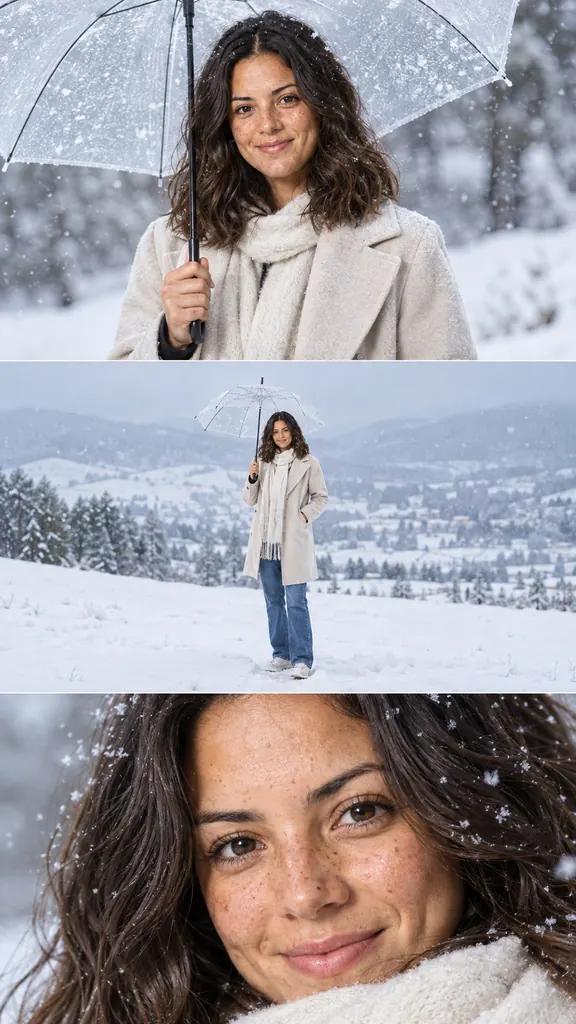
- Your input
- Choose a clear solo portrait with an unobstructed face. You do not need a snowy background or winter clothing.
- Your result
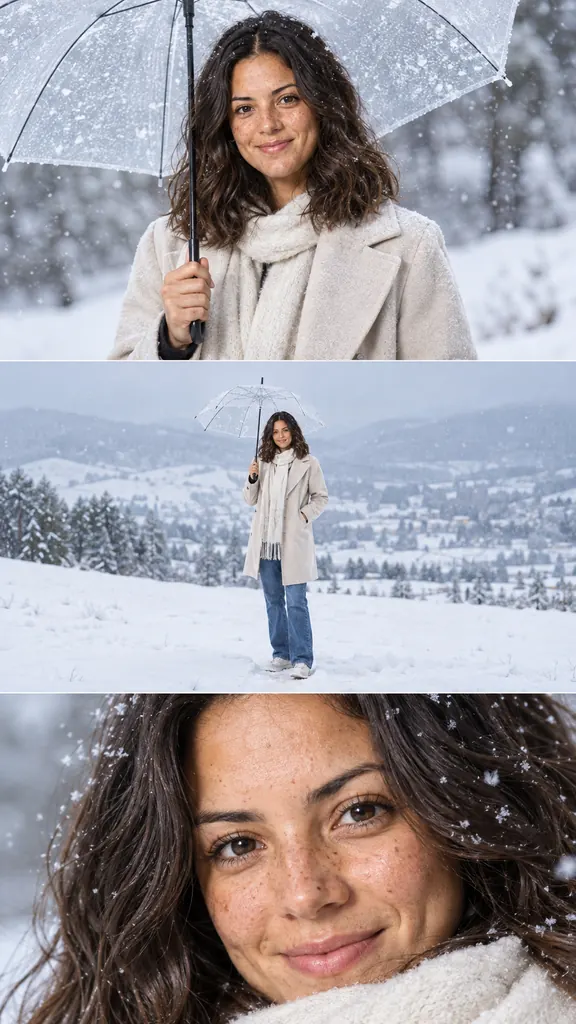
- One composite image with three horizontal panels stacked vertically. Winter clothing and scenery are generated from your portrait.
Start your winter story with one photo
Bring your photo; the preset supplies the winter setting and three-view composition.
Choose your portrait
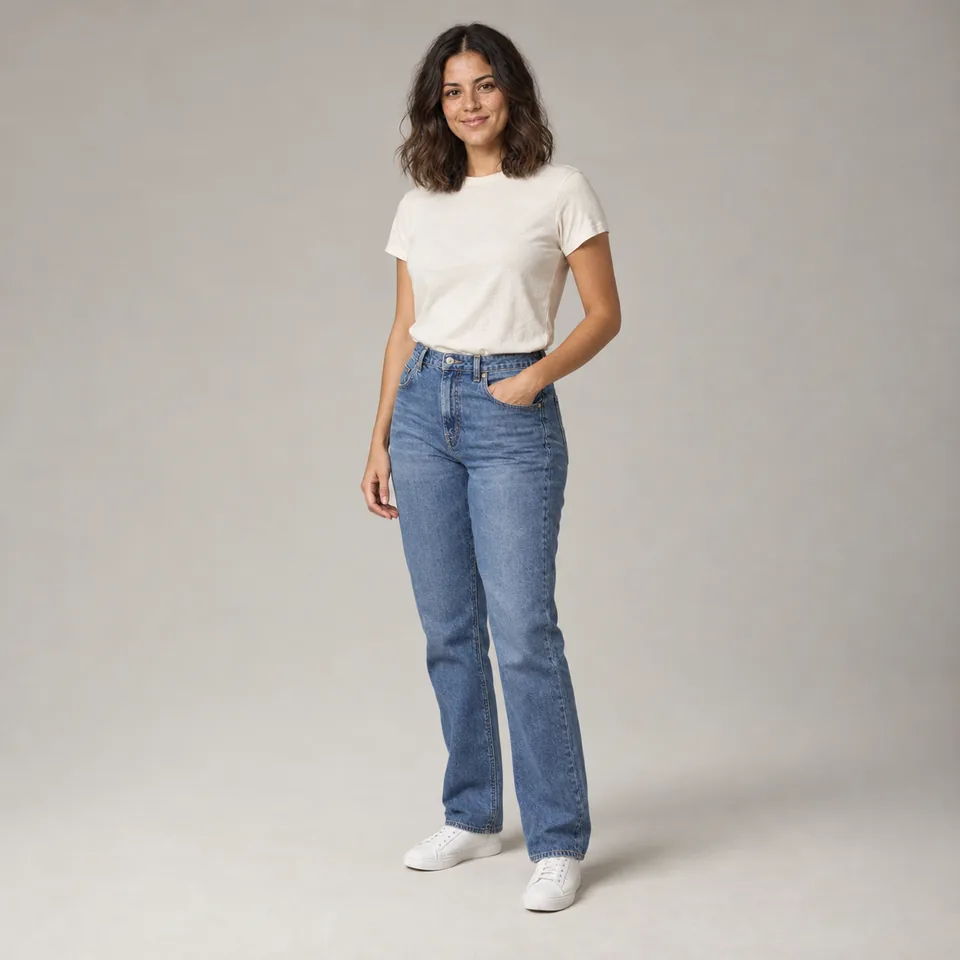
Replace the sample with a clear photo of one person. Keep the face visible and avoid heavy filters. A full-body reference also supports the wider scene.
Set the frame
Start with the recommended 9:16 ratio for the tall composition. You can change the ratio in Customize before generating.
Generate and save
Check the displayed credit cost, then generate. Review the face and details across the panels before downloading the completed image.
A winter portrait told in three views
An umbrella portrait introduces the person, a wider scene opens up the snowy landscape, and a close-up returns to their expression—all within one vertically stacked image.
Original photo
Generated example
Begin under the umbrella
The top panel introduces the person in a closer portrait. In the example, a pale coat, knitted scarf and transparent umbrella turn the studio reference into a winter scene.
Open up the landscape
The middle panel pulls back to show the person among snowy hills and trees. The wider view gives the composition room to establish its winter setting.
Return to the expression
The final panel moves close to the face, with the scarf and snow in the hair visible in the example. Together, the three distances create a small visual sequence.
Give your next seasonal post a winter mood
Try it when planning a winter update, preparing a seasonal greeting or giving a favorite portrait a fresh presentation. An indoor or summer photo can be your starting point.
Share a seasonal story
When you want a winter update for your feed or story, use the tall composition as one image. Check the platform’s crop keeps all three views visible.
Send a personal winter greeting
Preparing a seasonal message? Add the downloaded portrait to a digital greeting. Place your caption or greeting in your preferred editor after creating the image.
Build a winter portrait mood board
When gathering ideas for a future shoot, save the composition alongside clothing and location references. Use the three distances as a starting point for discussing a winter look.
Explore a winter scene without planning a snow shoot
Try the look from an existing portrait, even when there is no snow nearby. The preset brings wardrobe, setting and camera distances into one composition.
Start in any season
An indoor or summer portrait can become the reference for a snowy scene. You can explore the mood before deciding whether to arrange a real winter photo session.
Keep the creative decisions simple
The preset coordinates the coat, setting and shot sequence. Choose your source photo and review the result without specifying a different background and pose for each panel.
Match the effect to your goal
Choose the triptych for a new portrait composition. If you want to change the season of an existing outdoor place, explore Season Changer below instead.
Frequently asked questions
Can I use a selfie or a group photo?
Use one person. A clear selfie can provide facial detail, but unseen clothing and body areas must be generated for the distant view. A full-body photo supplies more of that reference. Group photos are not suitable for assigning people to panels.
Will my face and clothes stay the same?
The template aims to keep recognizable facial identity while adding winter outerwear. Faces, clothing details and anatomy can vary across panels, so compare the result with your original before using it.
Can I choose the shots or change their order?
The umbrella portrait, distant scene and close-up are preset. There are no individual panel controls, and framing or panel proportions can vary between results.
Can I download each panel separately?
Download saves one combined image. Separate panel files are not provided. Keep the full composition if you want to use the three-view sequence together.
Do I need an account, and how much does it cost?
Generation uses credits. The Generate button shows the cost for your selected output count. Sign in when prompted; you can inspect the sample result before starting a generation.
Can I try another version using the same photo?
Yes. Generate again with the same reference and style to explore another interpretation. Each new generation uses credits and creates a new result rather than editing an individual panel.