White Background vs Transparent Background: Which Should You Use?
PhotosStyle Team
5/28/2026
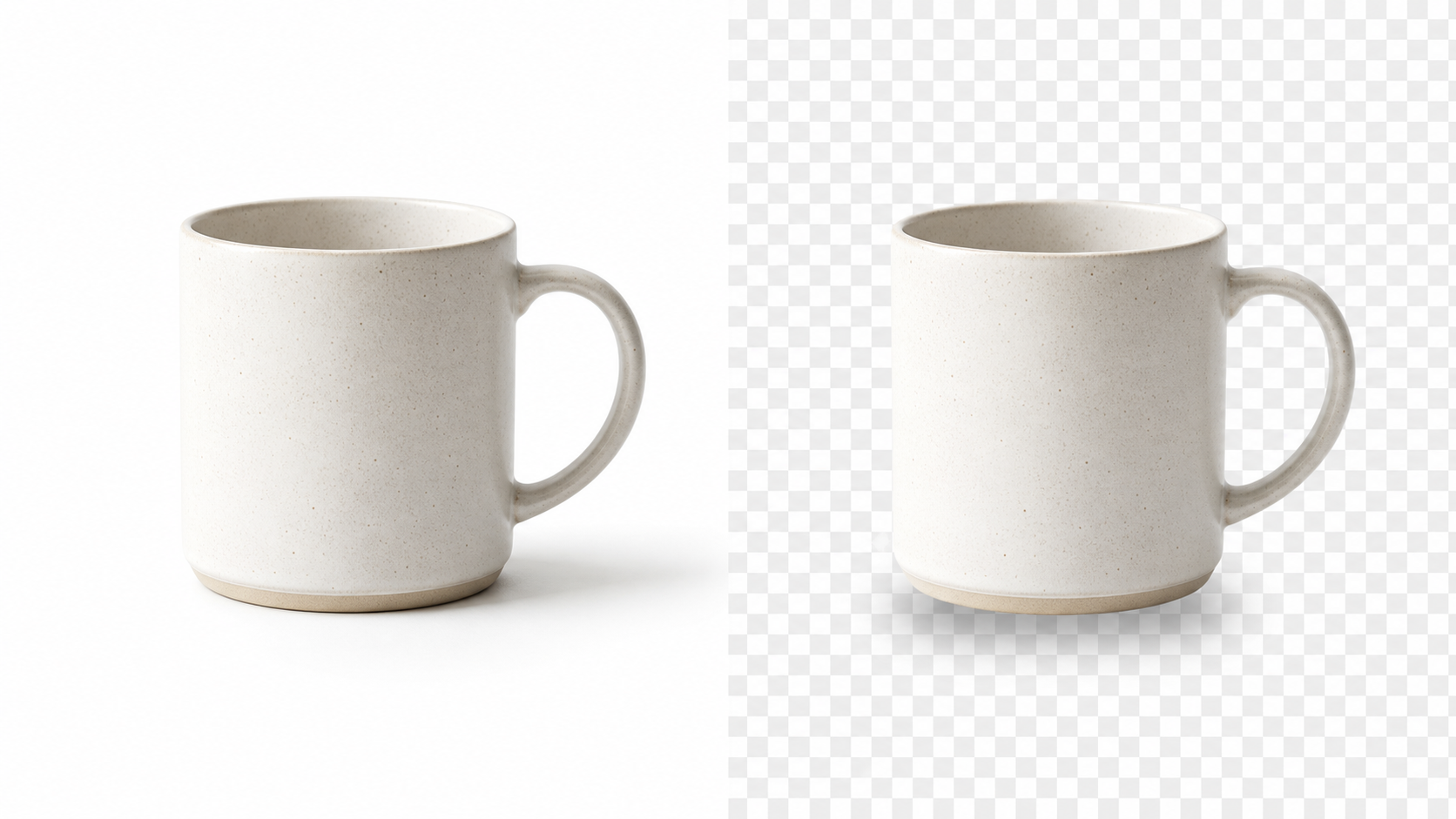
White Background vs Transparent Background: Which Should You Use?
White background and transparent background images look similar at first because both remove the original scene. But they solve different problems.
A white background creates a finished photo with a clean studio backdrop. A transparent background creates a cutout asset that can be placed on top of another design. Choosing the right one helps you avoid extra edits later.
Quick Answer
Use a white background when the final image should be ready to publish as a product photo, portrait, listing image, profile photo, or social post.
Use a transparent background when the subject needs to be reused in a design, layered over a new color, placed into a banner, or exported as a flexible PNG asset.
For finished white studio images, use White Background Maker. For transparent cutouts, use AI Remove Background.
What Is a White Background Image?
A white background image has an opaque white backdrop behind the subject. It behaves like a normal photo. If you upload it to a store, website, document, or social platform, the background remains white.
This is best for:
- Product listing photos
- Professional headshots
- Resume and profile images
- Catalog grids
- Marketplace-style visuals
- Clean social posts
The main benefit is predictability. The photo looks the same wherever you use it.
What Is a Transparent Background Image?
A transparent background image has no visible backdrop behind the subject. The empty area is usually saved in a PNG file with transparency. In editing tools, it may appear as a checkerboard pattern.
This is best for:
- Logos and stickers
- Product cutouts for banners
- Design assets for ads
- Collages and thumbnails
- Images that need a new background later
The main benefit is flexibility. You can place the subject over a color, photo, gradient, or layout without removing the background again.
Which Is Better for Product Photos?
For the main product listing image, white background is usually better. It is clean, easy to inspect, and consistent across store grids.
For marketing designs, transparent background can be better. A transparent PNG lets you place the product on a sale banner, social ad, comparison graphic, or seasonal campaign background.
Many sellers use both:
- White background for the main product image
- Transparent background for banners and promotional design
- Lifestyle photos for context and scale
If you only need one finished listing image, choose white. If you plan to design around the product later, choose transparent.
Which Is Better for Portraits?
For portraits, a white background is usually the better final output. It feels clean and professional on LinkedIn, resumes, speaker pages, company directories, and personal websites.
A transparent portrait cutout is useful when a designer needs to place the person on a branded background, team page layout, or event graphic. But for most people, a clean white background is simpler and more reliable.
Use the Profile portrait preset in White Background Maker when you want the portrait to feel like a finished headshot.
PNG or JPG: Why the Format Matters
Transparent backgrounds require PNG because JPG does not support transparency. If you save a transparent image as JPG, the empty area will usually become white or another solid color.
White background images can be saved as PNG or JPG. PNG keeps crisp details and is useful for design work. JPG is smaller and works well for listings, websites, and sharing.
PhotosStyle's result download menu lets you choose PNG or JPG for white background images. For transparent cutouts, use PNG.
How to Decide
Ask one question: is this image finished, or will it be placed into another design?
If it is finished, choose white background. If it will be reused, layered, or redesigned, choose transparent background.
If you choose the wrong one, you can still recover. A transparent PNG can be placed over a white canvas. A white background image can be processed again with a remover, though the edges may need more checking.
Recommended Workflow
For a store owner, create one white background version for the main listing image, then create transparent versions of your best-selling products for ads and banners.
For a creator, use white background for profile photos and transparent background for thumbnails, stickers, and branded graphics.
For a designer, use transparent background during layout work, then export the final design with whatever background the project needs.
Start with White Background Maker when you need a clean finished photo, or use AI Remove Background when you need a flexible transparent cutout.