How to Make a Profile Picture with a Clean White Background
PhotosStyle Team
5/28/2026
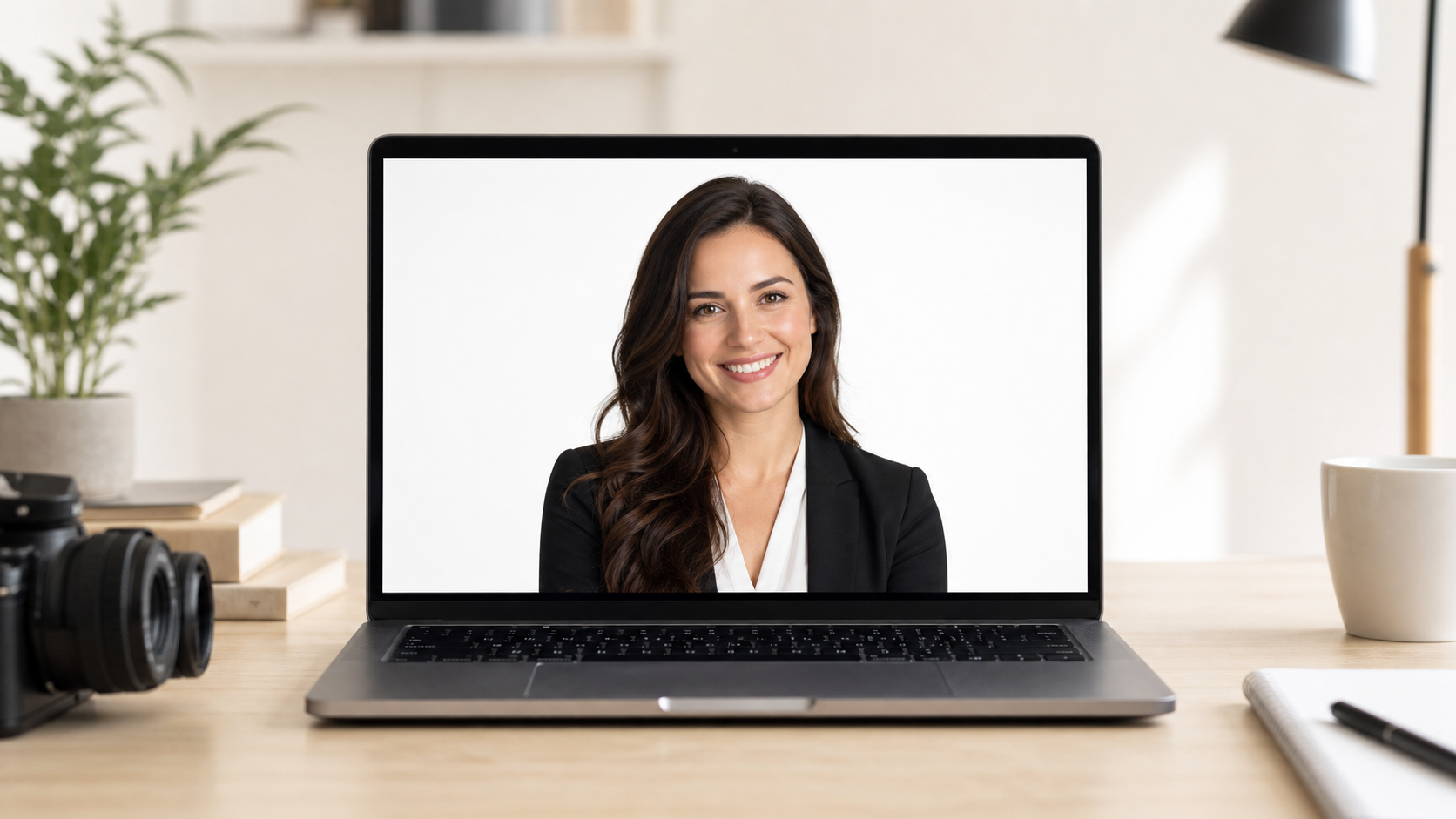
How to Make a Profile Picture with a Clean White Background
A clean white background can make a profile picture feel more focused, professional, and consistent. It removes distractions from the room behind you and keeps attention on your face, expression, and overall presentation.
You do not need a studio portrait to get this look. With PhotosStyle's White Background Maker, you can upload a portrait, choose the Profile portrait preset, and generate a clean white or softly neutral background online.
Why White Backgrounds Work for Profile Photos
Profile pictures are often viewed small: in a search result, a resume preview, a social feed, or a team directory. A busy background becomes visual noise at that size.
A white background helps because it:
- Keeps the face readable in small previews
- Makes the image look cleaner across platforms
- Works with most resume and company page designs
- Avoids distracting rooms, cars, events, or screenshots
- Gives a consistent look to team member portraits
This does not mean every profile photo must feel formal. A clean background simply gives the portrait a clearer frame.
Pick the Right Source Photo
Start with a portrait where your face is sharp and well lit. A phone photo is fine if it is not blurry, overly dark, or heavily filtered.
Good source photos usually have:
- The full head and shoulders visible
- Even lighting across the face
- Natural expression
- Simple clothing that does not blend into the background
- Enough space around the head for cropping
Avoid photos with sunglasses, extreme side angles, very messy hair edges, or hands crossing the face. The AI can handle many situations, but a cleaner source image gives a cleaner final result.
Step-by-Step: Create the White Background Portrait
Open the White Background Maker and upload your portrait.
Choose a background color. Pure white is the most formal and works well for resumes, company pages, and ID-style uses. Light gray can look softer on LinkedIn or personal websites. Warm off-white can feel friendly while still looking clean.
Select the Profile portrait preset. This tells the tool to preserve the person, keep the composition natural, and create a studio-style background.
Choose whether to keep a subtle shadow. For portraits, a very soft shadow can add depth, but a flat background is better when the image needs to look like an ID-style photo.
Generate the result and inspect the hairline, shoulders, glasses, and clothing edges. If the result needs refinement, use the edit result entry to ask for cleaner edges or a different background tone.
Download as PNG for best detail or JPG for a smaller upload-friendly file.
Cropping Tips for LinkedIn, Resumes, and Team Pages
Most profile platforms crop images into circles or squares. Keep enough space around the head so the crop does not cut through hair, shoulders, or the top of the head.
For LinkedIn, a head-and-shoulders crop usually works best. For resumes, a slightly tighter crop can feel more formal. For team pages, keep everyone framed similarly so the page looks consistent.
If you are preparing portraits for a whole team, use the same background color and similar crop for every person. This small detail makes a directory feel more polished.
White, Gray, or Off-White?
Pure white is best for formal use. It feels clean, bright, and direct.
Light gray is helpful when the shirt, hair, or skin tone needs more separation from the background. It can also reduce the harshness of pure white on some screens.
Warm off-white is a good choice for coaches, creators, consultants, and personal brands that want a softer look.
You can create a few versions and choose the one that feels most natural for the platform.
Common Problems and Fixes
If the hair edge looks rough, use a clearer original photo or edit the result with a prompt focused on cleaner subject edges.
If the background feels too flat, keep a subtle shadow or choose light gray instead of pure white.
If the face looks washed out, avoid brightening the image too much before upload. Let the tool change the background while preserving the subject.
If your clothes blend into the white background, try light gray or warm off-white for a little more contrast.
Related Tools
Use AI Remove Background if you need a transparent portrait cutout for design work. Use the Background Color Changer if you want a branded color instead of white.
For a finished profile picture with a clean studio look, start with the White Background Maker.